

How to Manage Your Profile Page Details via the User Dashboard
How to Add, Delete & Edit Official Channels:
– Log in to your account
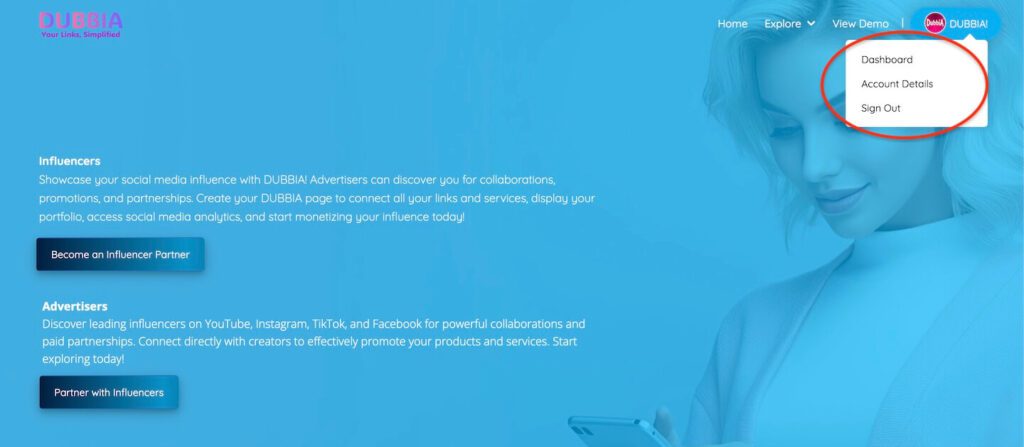
– Once logged in, locate your username in the top-right corner. Hover over it to reveal a dropdown menu.
– From the dropdown, click on the Dashboard link.
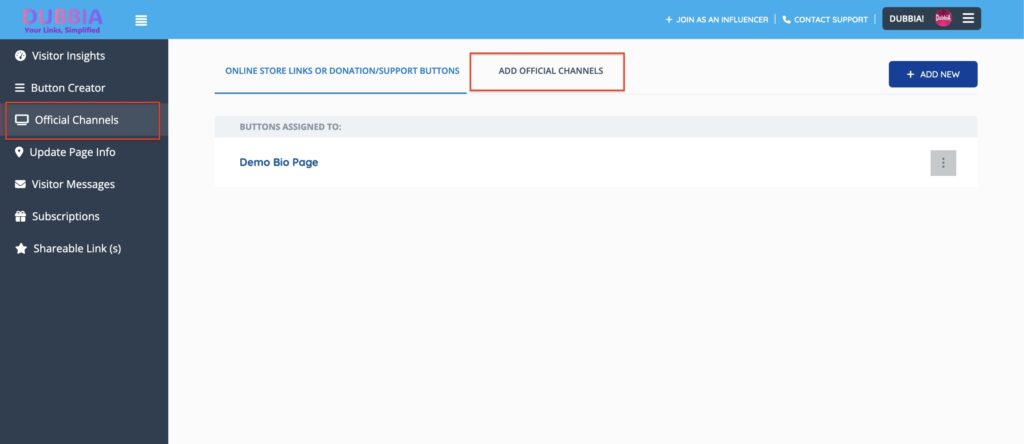
– On the Dashboard, select the Official Channels tab in the left-hand menu, then click the OFFICIAL CHANNELS tab at the top of the page.
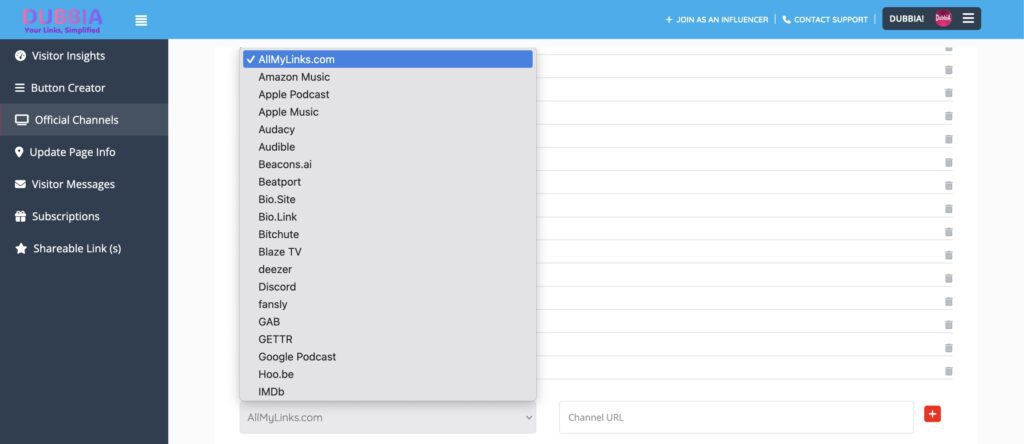
– You’ll find a dropdown menu listing all available official channels. Choose the channel you want to add, enter its URL in the provided field, and click the blue plus sign to save your changes.
Important Note: You must add at least one donation link during this process for your official channels to appear on your page. CLICK HERE FOR THE INSTRUCTIONS
Note: The following example uses a demo bio page for illustration purposes.
Click on images to enlarge
How to Make Changes to Bio Page Details:
To make changes, add, delete or edit any details you added when creating your page such as page title, YouTube video link, social media links, website or blog URL, donation & support links, FAQs, your page/bio description & images, follow the instruction below:
– Log in to your account
– Click and go to your bio already published page
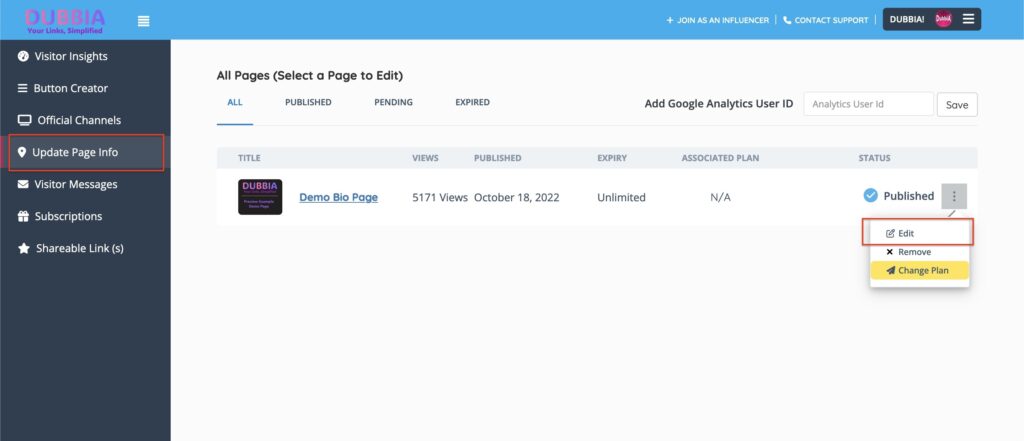
– Once on your page; you’ll see an “Edit” button on the bottom right corner of the page, click on the button
– Then you’ll see your page details mentioned above, make the necessary changes and save
– The changes you made will be shown on your published page
NOTE: we are using a Demo Bio Page as an example
Click on image to enlarge
How to Upgrade Your Subscription Plan:
To upgrade your subscription plan, follow the instruction below:
– Log in to your account
– Once logged in, locate your username in the top-right corner. Hover over it to reveal a dropdown menu.
– Click on the Dashboard link in the dropdown.
– In the Dashboard, select the Profile Page tab from the left-hand menu. This will display a list of your profile pages.
– Find the bio page you want to update and click on the circle menu icon on the right side of the list. A small menu will appear.
– From the menu, click Change Plan, select your desired plan, and follow the simple steps to complete the upgrade.
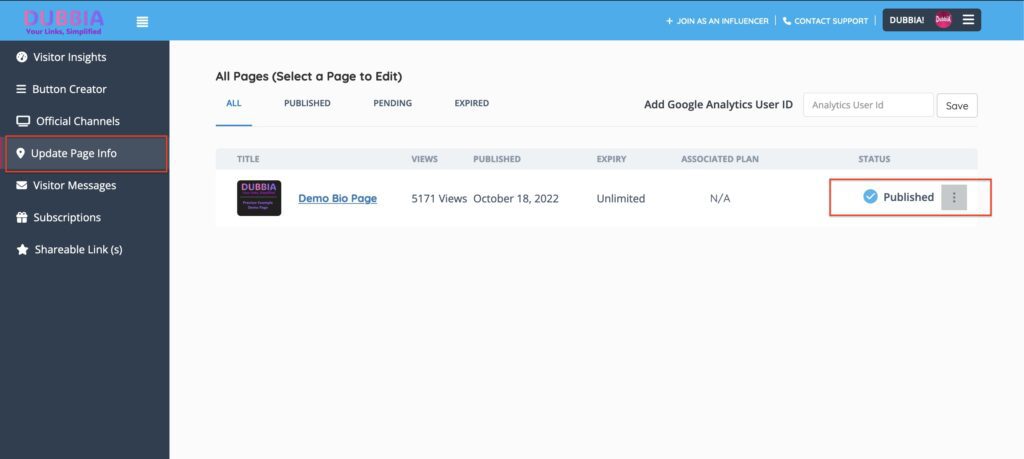
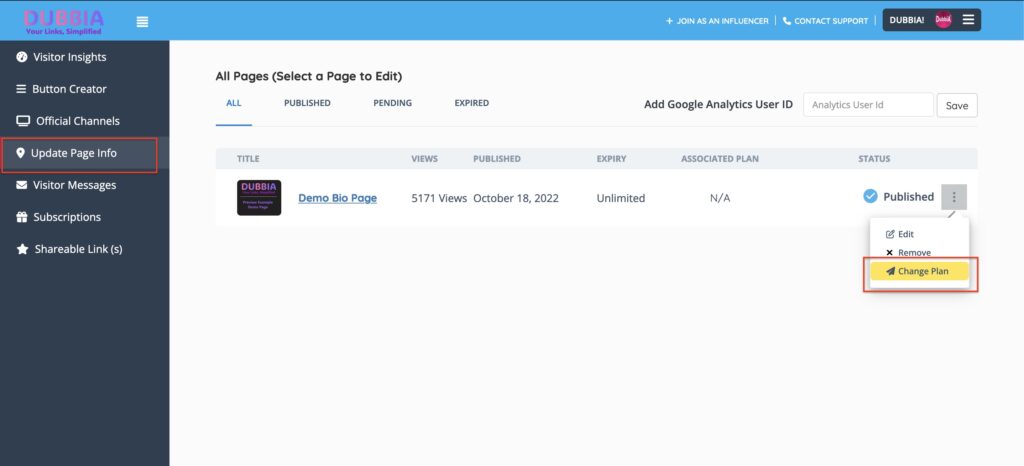
Click on images to enlarge
How to Update Your Email Address & Password:
– Log in to your account.
– Once logged in, locate your username in the top-right corner. Hover over it to reveal a dropdown menu.
– Click on the Dashboard link in the dropdown..
– On the Dashboard, click the hamburger menu (three bars) in the top-right corner to reveal additional options.
– Select the Account Details link. This will take you to your profile details page.
– On the profile page, you can update your email address, password, and other personal details.
– After making your changes, scroll to the bottom of the page and click the Update Profile button.
This will save your updates, including any changes to your email address or password.
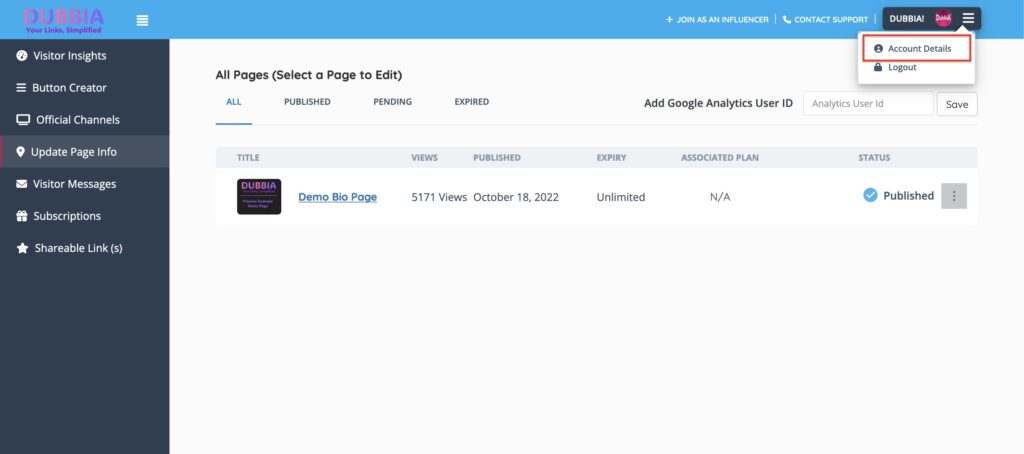
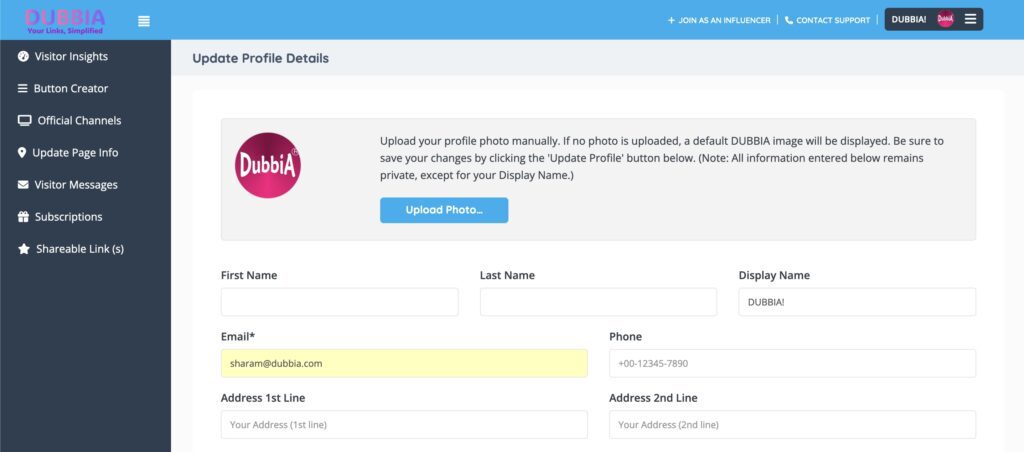
Click on images to enlarge
Need help? Contact DUBBIA! Support
 View desktop version